MKV is a container format. One file can hold a video, several audio tracks, several subtitle tracks and chapter markers. That flexibility is why it is popular for high-definition video, and also why some players struggle with it. DivX Player handles MKV well.
Open an MKV file
- Start DivX Player.
- Drag the
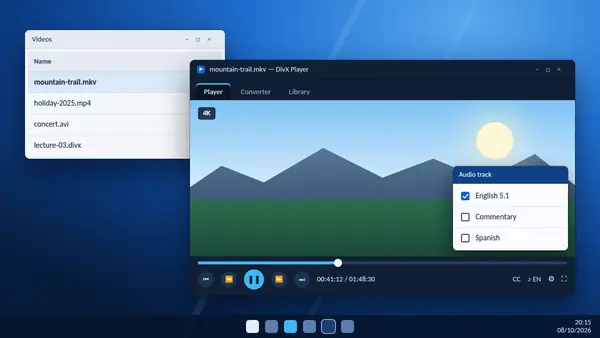
.mkvfile onto the window, or open it from the menu. - Playback starts. Move the mouse over the player to bring up the controls.
DivX Player plays MKV video up to 4K. It uses a feature the publisher calls Codec Optimization, which picks the most suitable audio and video decoder available on your computer for each file.
Switch audio tracks
If the file contains more than one soundtrack, such as another language or a commentary, open the audio menu on the playback bar and choose the track you want. The change happens without stopping the video.
Turn on subtitles
Subtitle tracks stored inside the MKV appear in the subtitle menu. If the file has none, you can search for subtitles by title from inside the player.
Jump between chapters
Many MKV files include chapter points. Use the chapter option to move straight to a scene. For finer control, hover over the playback bar to see thumbnail previews, or use the fast-forward and rewind buttons, which go up to 32 times normal speed.
If playback stutters
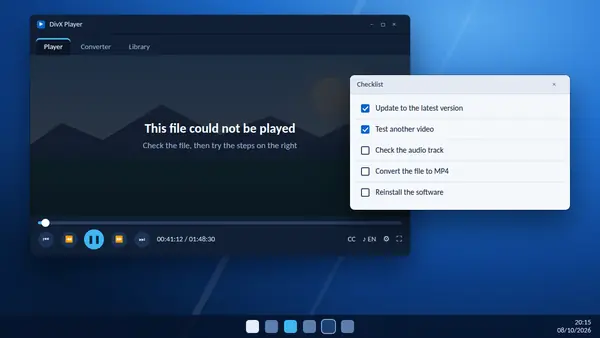
- Large 4K files: close other heavy programs and play the file from an internal drive, not a slow USB stick or a network share.
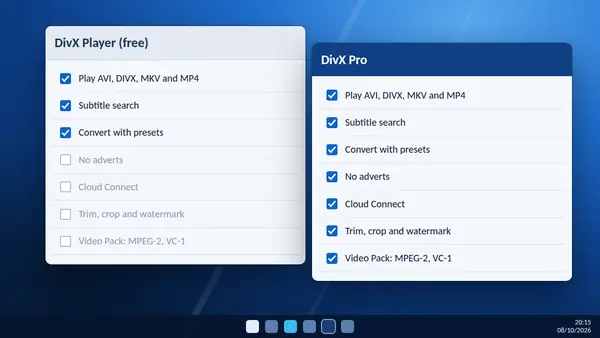
- HEVC video: HEVC, also called H.265, is demanding. On Windows, DivX supports it, and DivX Pro adds further HEVC optimisation. On Mac, HEVC playback is currently unavailable in DivX 11.
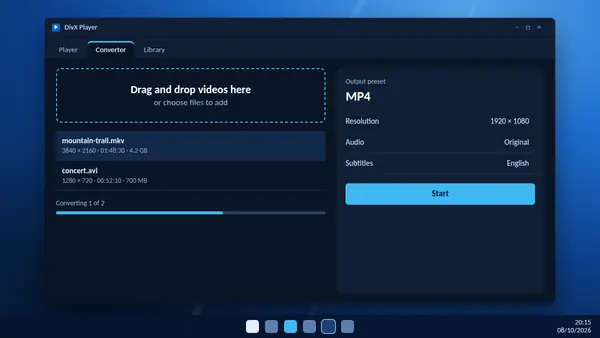
- Older computers: convert the file to a lower resolution with the built-in converter.
- Out-of-date software: install the newest DivX release, which includes playback fixes.
If there is no sound
Open the audio menu and try another track. Some soundtracks use formats that need DivX Pro or a compatible audio device. Also check that the volume inside the player is not at zero.
MKV or MP4?
Keep MKV for your computer library, where multiple tracks and chapters are useful. Convert to MP4 when the video has to play on a phone, a tablet or a television that does not read MKV.